How to Use AI to Count Cows in a Field
You have a farm and need to count the number of cows in the field to make sure none are missing. A machine can do this for you:
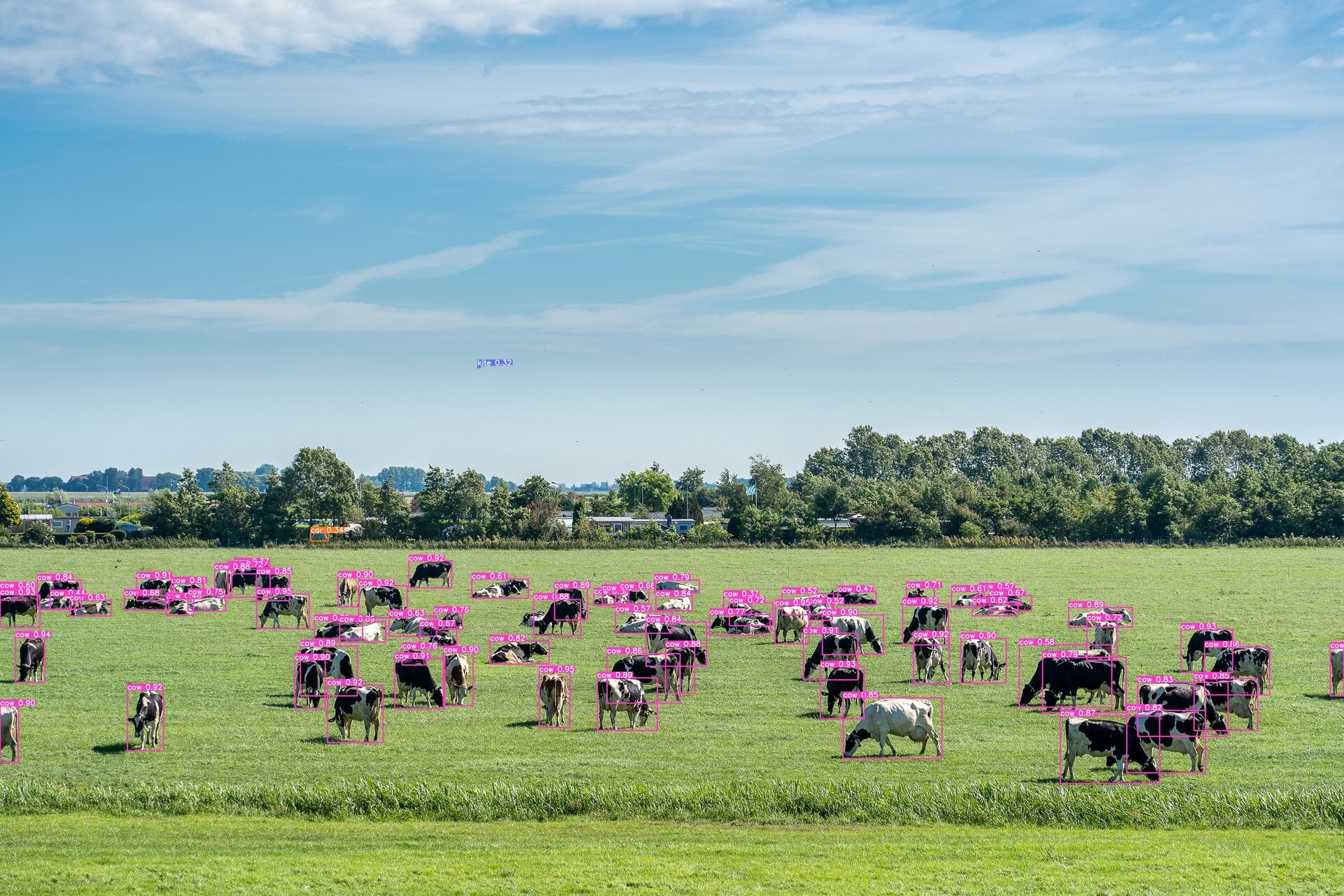
Real-life examples: count customers who entered the store today, sort fruits, or count cars in a parking lot.
We will create a simple image analyzer to count the number of cows in the field and automatically highlight them in the photo. No programming experience required. If something is unclear, just ask ChatGPT.
The code is universal, so you can detect people or other objects by simply editing one line of code. We will use YOLOv8, a state-of-the-art and highly accurate image recognition library that you can use for free.
Requirements:
- Computer (Mac or Windows or Linux)
- Internet
- Python (we will install it)
- YOLOv8 AI model (we will download it)
- Cow images (we will download them)
Setting up the workspace
The programming process consists of two parts: writing code and executing it. Usually, code is written in a text editor and executed using a tool like "Terminal" on Mac. However, there are applications specifically created for programming, such as Visual Studio Code, that allow you to write and execute code on one page.
Visual Studio will also help you install Python. You can also install extensions that speed up code writing (such as Python autocompletion and Copilot) or an extension that stores your code on the internet (such as Git repository).
Installing Python
We will use Python to write code and install AI models. To run Python code, we will use Visual Studio Code. To install Python, simply open "Extensions" on the left panel, type "Python" in the search field, and install the Python extension.
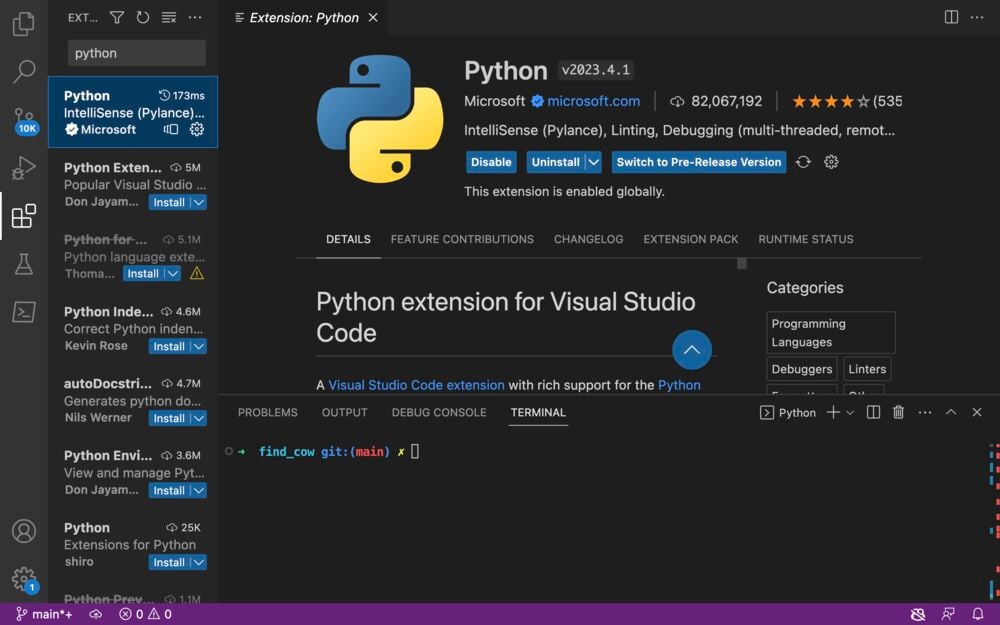
Installing Python on Mac
Errors may occur during installation. Ask ChatGPT for help in solving them (for example, copy and paste the error text).
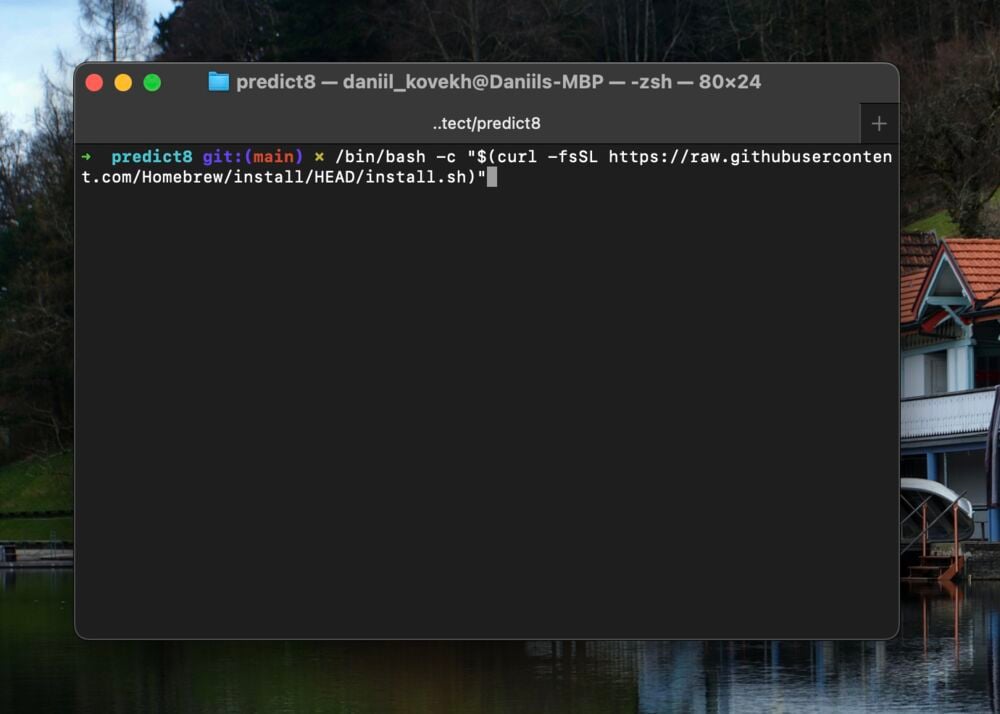
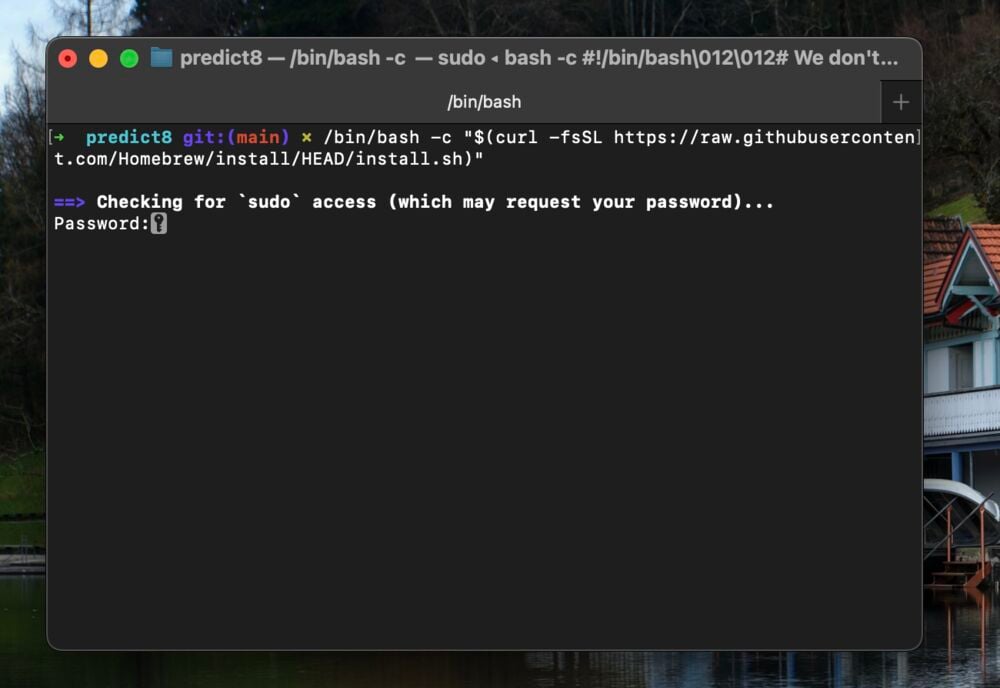
To install Python on Mac, you need to download Homebrew - it is like an app store for programmers. Open the "Terminal" application (press Command+Space and type "Terminal"), then copy and paste the code below into "Terminal":
/bin/bash -c "$(curl -fsSL https://raw.githubusercontent.com/Homebrew/install/HEAD/install.sh)"
Press Enter and follow the program instructions.
After installing Brew, it is recommended to run
brew update
This ensures you have the latest version of Homebrew and will download the latest version of Python.
Download Python by typing
brew install python
Follow the instructions and contact ChatGPT if errors occur.
Installing on Windows
Go to the official Python installation page and select the latest Python installer for Windows.
Installation is simple, but some problems may arise. If this happens, describe the errors to ChatGPT (for example, copy and paste the error text).
Writing code
Create a new document by pressing Command+N. Then save the file using Command+S under the name "analyze_image.py", where "analyze_image" is the name and ".py" indicates a Python file.
Now write a simple code that outputs "Hello!":
print("Hello!")
Save the code by pressing Command+S
Running the code
To run the code, press the play button. You will see the result in the "Terminal" window below. (Note: your terminal may look different than mine, but it does not matter)
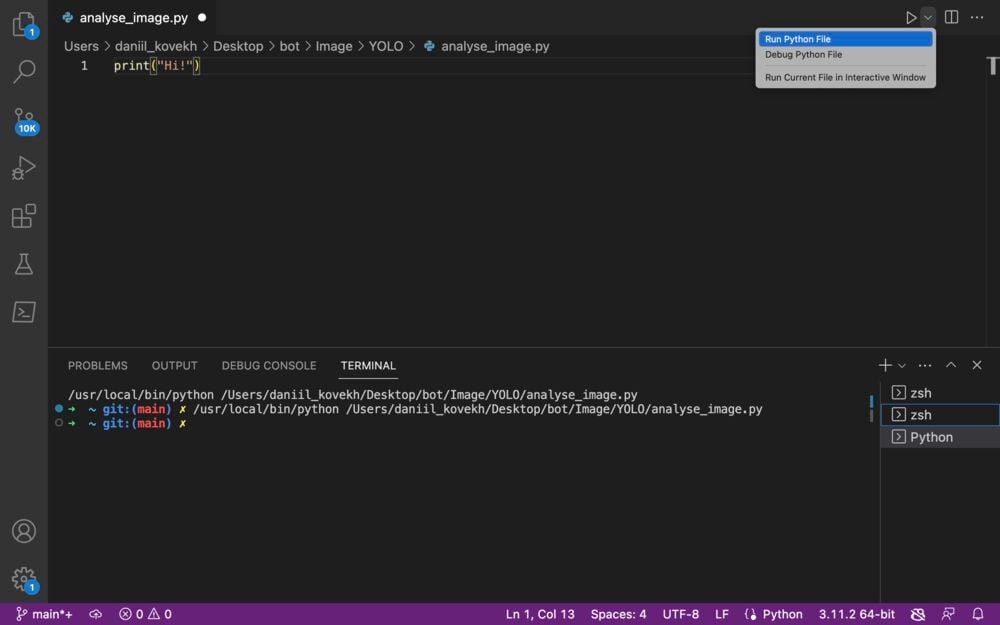
You can also press the F5 button. The first time you will be prompted to select a debugger (same as running code). Choose the first one.
Alternatively, you can run the program using the terminal in Visual Studio Code or "Terminal" on Mac. This is a bit more complicated. First, open the folder where the Python file is located. It is displayed at the top in Visual Studio Code.
To open it, enter the path and "cd" (change directory) function in the command line. Do not specify the file name; stop at the last folder.
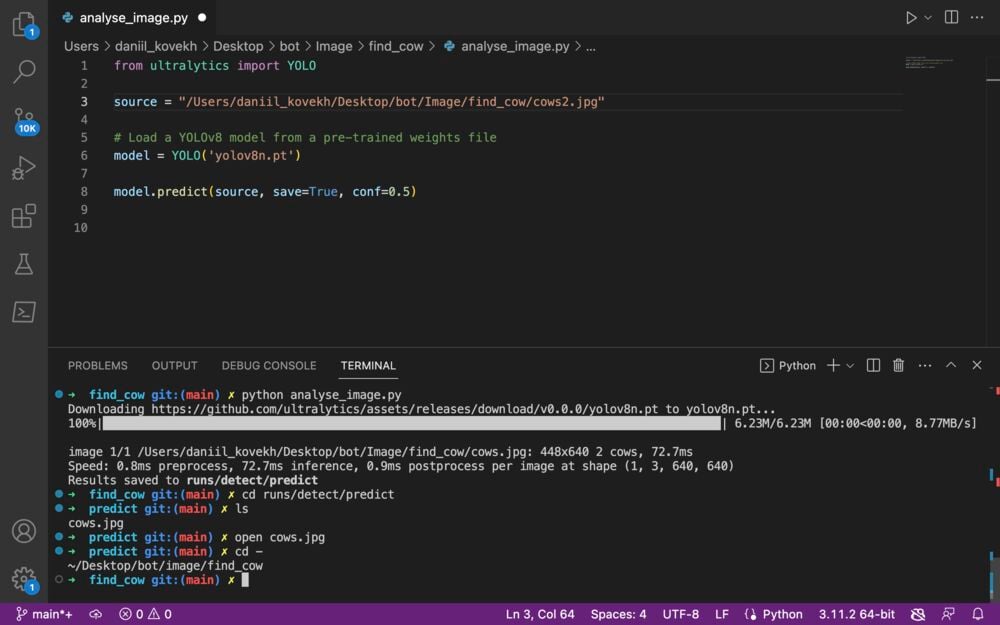
cd /Users/daniil_kovekh/Desktop/bot/Image/find_cow
Now you can list all files in the folder.
ls
To run Python code, type "python" and the file name with ".py" at the end.
python analyse_image.py
That is all. If an error occurs, ask ChatGPT for help. There might be an error in the code.
Installing libraries
Basics
A library is code written by other developers. Here is how to use it:
For example, if you want to create a graph with the number of customers who visited your store last week, you can use an existing graphing function such as "Matplotlib". This library can draw any graph you need.
First, download the library from the internet. Use the command line in Visual Studio Code for this (you can also use the "Terminal" application on Mac). We will use the Python installer called "pip".
pip install matplotlib
Press "Enter" on the keyboard.
After downloading, simply write this code.
The "#" symbol is used for comments. Text after it in the line will be visible to you but not to the machine.
# Import the library and pyplot module. The module contains functions.
import matplotlib.pyplot

# Define the data. We store data in lists - elements of the same format.
# days - a list containing text - this is a "string" format
days = ["Mon", "Tue", "Wed", "Thu", "Fri", "Sat", "Sun"]

# customers - a list containing numbers - "integer" format
customers = [120, 140, 110, 100, 170, 200, 210]

# Add data to the graph (X, Y).
# We use a bar chart - the function is also called "bar".
matplotlib.pyplot.bar(days, customers)

# Draw and display the graph.
matplotlib.pyplot.show()
Save the code using the Command+S button and press the play button to run the code (or use other methods we learned earlier). The graph will appear in another window or possibly on another desktop.

Free or paid
Most libraries are free, but some require payment. For example, Yahoo Finance provides free access to stock price data. However, OpenAI, the provider of ChatGPT, charges $0.06 for every 1000 words typed using ChatGPT-4.
YOLOv8 - the image analyzer can be used for free.
Internet access
Some libraries require internet access. Yahoo Finance and OpenAI both work with the internet. Yahoo Finance uses the internet to access its stock price database. OpenAI uses the internet for a different reason: it receives the text you wrote, runs the AI program on its server, and sends you the response.
YOLOv8 works both online and offline. YOLOv8 requires internet access to access the database with trained models that determine what is shown in the picture. If you train the model yourself by uploading hundreds of photos and indicating what is shown in them, it will work offline.
Importing the YOLOv8 library
The YOLO library is developed by Ultralytics. To install it, simply execute the following command:
pip install ultralytics
You may encounter errors related to the need to download other libraries or outdated packages. Just copy and paste these error messages here to ChatGPT.
Getting cow images
We will find cows in meadows using these images: https://koveh.com/img/cows.jpg https://koveh.com/img/cows2.jpg https://koveh.com/img/cows3.jpg Download these images and place them in the folder with the "analyse_image.py" script.
Writing code for detecting cows
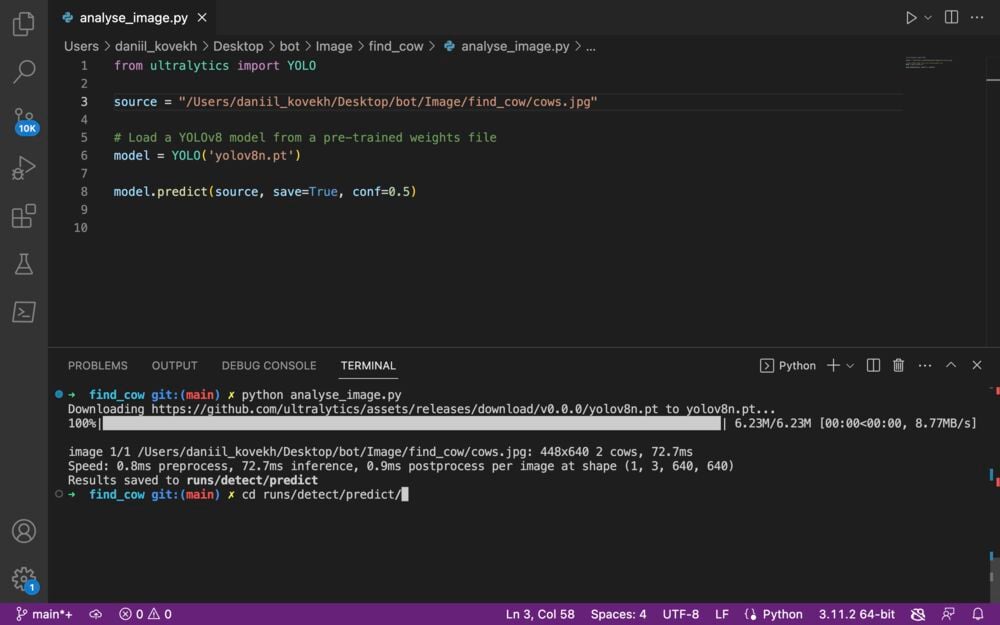
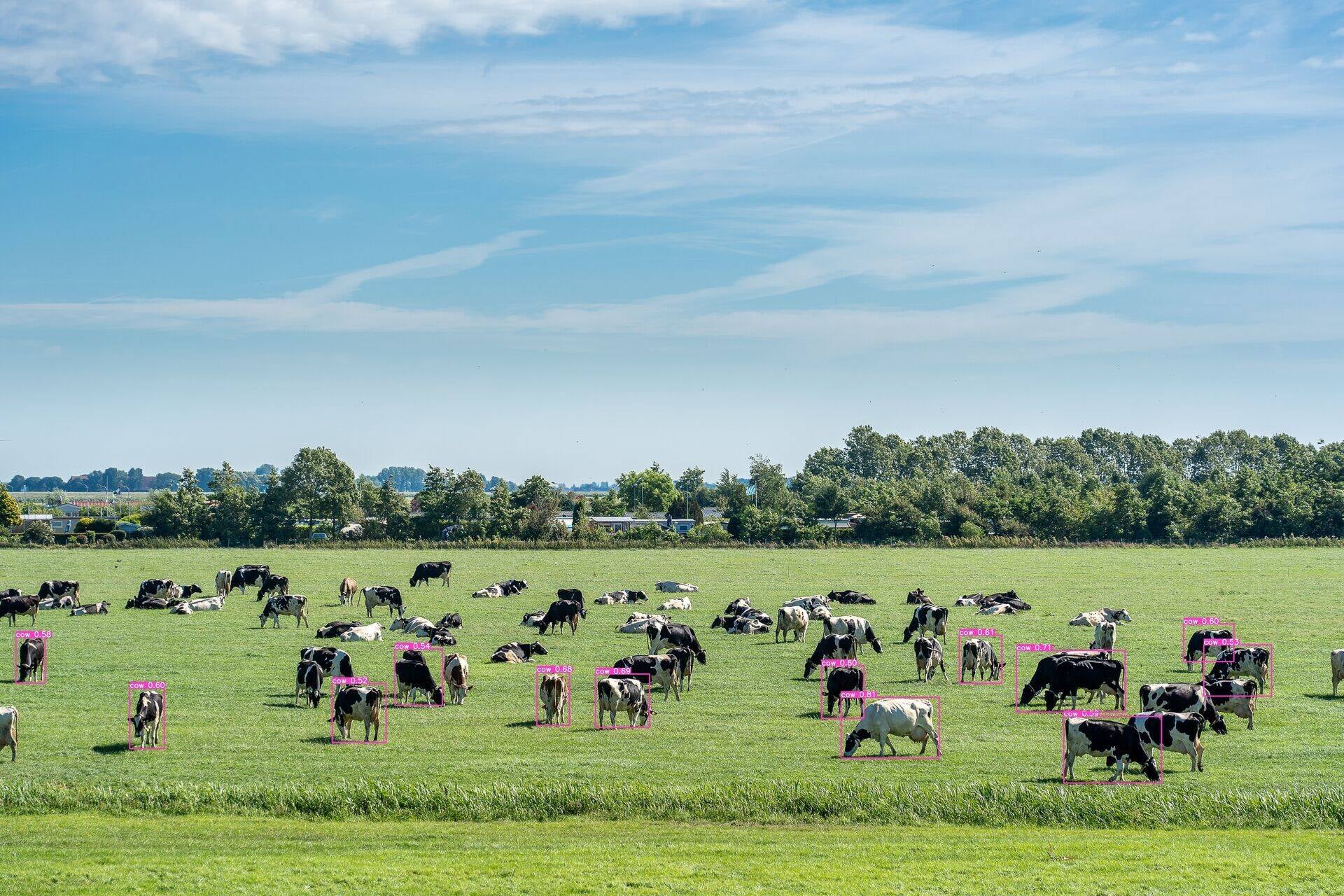
Lets write the basic code for detecting cows in images. First set the path to the source image. Then define the model - we will use a simple universal pre-trained model called "yolov8n.pt". Then specify whether to save the new image with highlighted cows. Also set the confidence threshold for the computer to identify a cow (from 0 to 1). The lower the confidence level, the more likely a cow will be found, but the risk that another object will be selected as a cow will also be higher (for example, a car might become a cow). Set the confidence threshold to 0.4.
Additional settings can be found on the official webpage
Note: we do not specifically define that we are looking for cows; the code simply identifies the most obvious objects in the picture. We will refine this later.
from ultralytics import YOLO

source = "/Users/daniil_kovekh/Desktop/bot/Image/find_cow/cows.jpg"

# Load YOLOv8 model from pre-trained weights file
model = YOLO("yolov8n.pt")

# Find cow with confidence 0.4 and save image
model.predict(source, save=True, conf=0.4)

Improving results - reducing confidence
To improve the results, we can adjust the confidence threshold and Intersection Over Union (IOU) - which accounts for overlapping cows, for example when a cow is hiding behind a tree. Change these settings in the range from 0 to 1.
from ultralytics import YOLO

source = "/Users/daniil_kovekh/Desktop/bot/Image/find_cow/cows.jpg"

# Load YOLOv8 model from pre-trained weights file
model = YOLO("yolov8n.pt")

# Find cow with confidence 0.4 and save image
model.predict(source, save=True, conf=0.4, iou= 0.4)
Results may still be imperfect because with a low confidence threshold, AI might mistakenly identify other objects, such as cars, as cows.
Improving results – increasing image size
By default, the image width is 640 pixels. The size of cows3.jpg is approximately 5000x3000 pixels, while the size of cows.jpg differs. Determine the appropriate image size for each picture using Python Imaging Library (PIL).
Install PIL using the terminal command and pip:
pip install Pillow
Now write Python code in Visual Studio:
from PIL import Image

source = "/Users/daniil_kovekh/Desktop/bot/Image/find_cow/cows3.jpg"

# Load the image and get its width
image = Image.open(source)
width, _ = image.size # _ means height, which we do not need.

# Load YOLOv8 model from pre-trained weights file
model = YOLO("yolov8n.pt")

# use imgsz equal to width
model.predict(source, imgsz=width, save=True, conf=0.4, iou= 0.4)
This approach gives better results, but feel free to experiment with settings for further improvement.
Counting cows
To count cows, we will count the number of "cow" indices. Cow indices are stored in a dictionary similar to the example below:
animals = {"cow": 0.8, "cow":0.5, "dog":0.4, "cow":0.66, "duck":0.4}
This dictionary records each detected object in the image and its confidence as the specified animal. We will count all cows present in the dictionary. In the example above, there are three cows.
from ultralytics import YOLO
from PIL import Image

source = "/Users/daniil_kovekh/Desktop/bot/Image/find_cow/cows3.jpg"

# Load the image and get its width
image = Image.open(source)
width, _ = image.size

# Load YOLOv8 model from pre-trained weights file
model = YOLO("yolov8n.pt")

# Define cow class index
cow_class_index = None # default if no cows in picture

for key, value in model.names.items():
    if value == "cow":
        cow_class_index = key # key is the first element in Python dictionary
        break

# Run prediction on first image
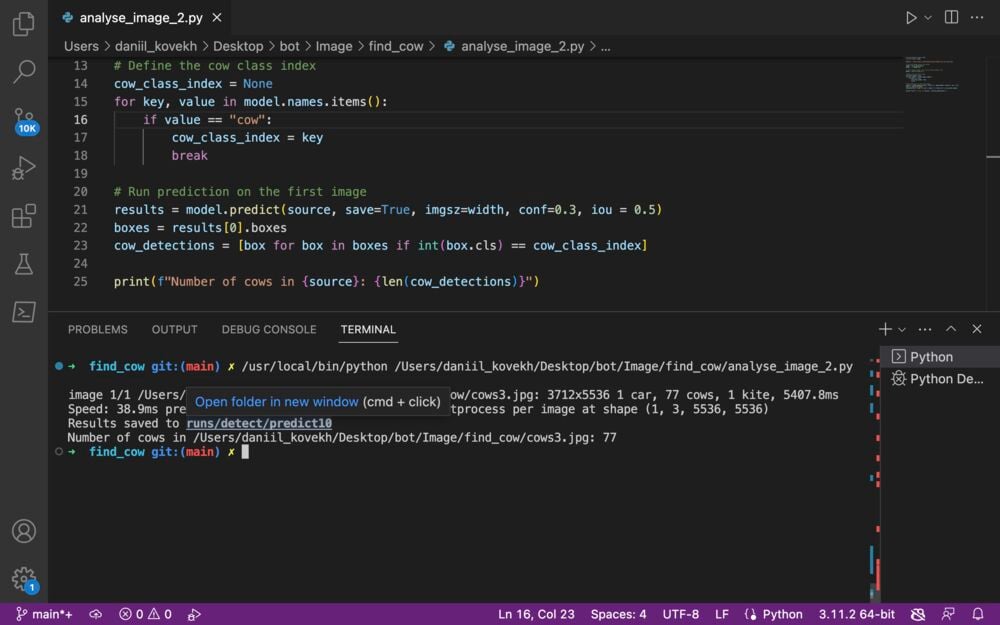
results = model.predict(source, save=True, imgsz=width, conf=0.3, iou = 0.5)
boxes = results[0].boxes
cow_detections = [box for box in boxes if int(box.cls) == cow_class_index]

print(f"Number of cows in {source}: {len(cow_detections)}")
Analyze anything
Now you are ready to write code to detect objects of various types. If you want to detect people, simply change the value from "cow" to "person" or "cup".
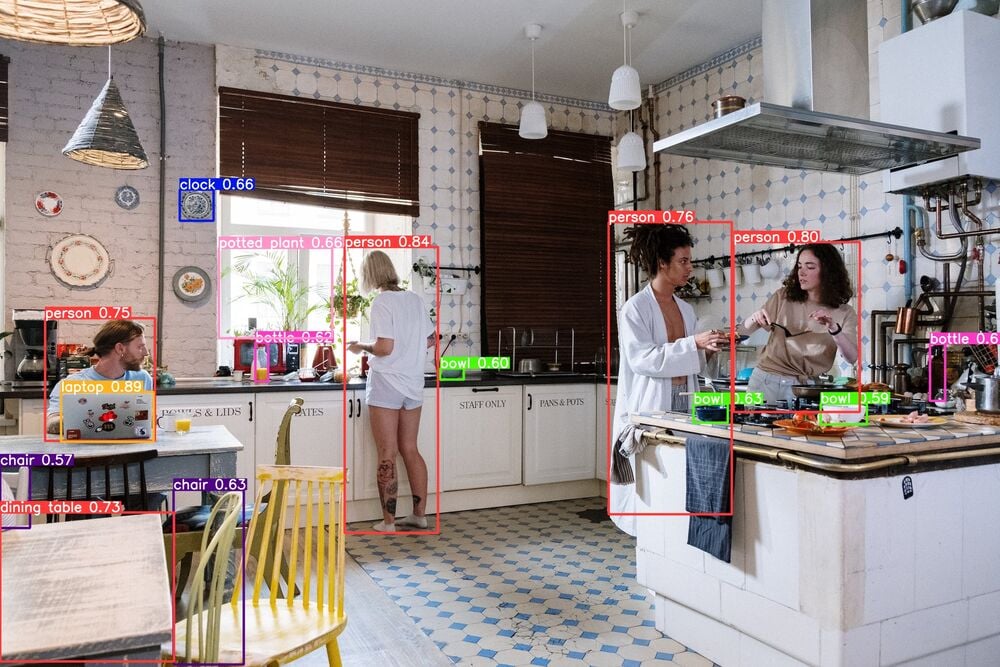
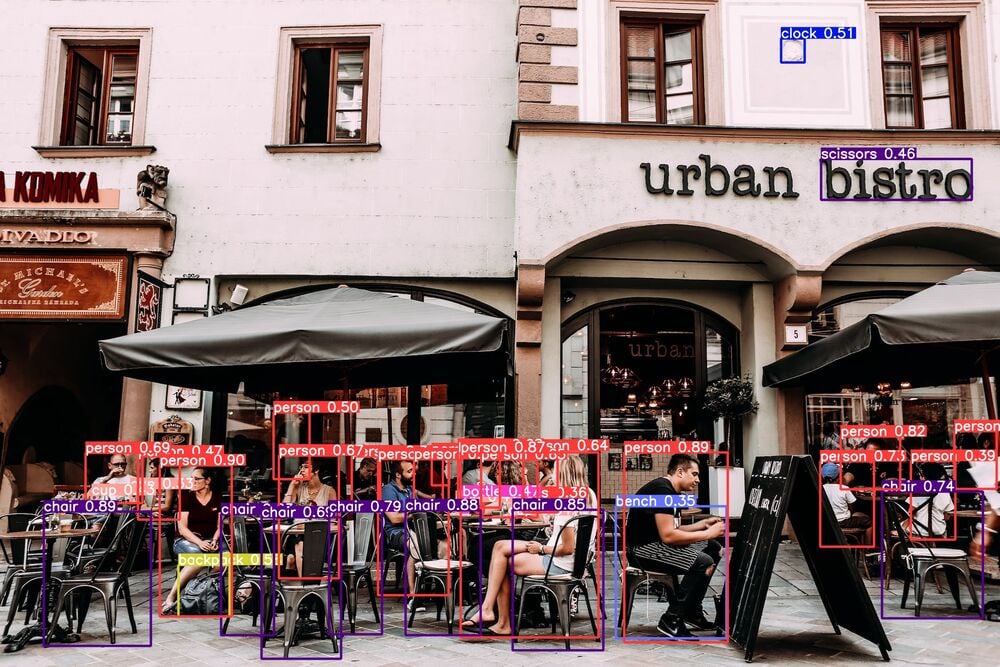
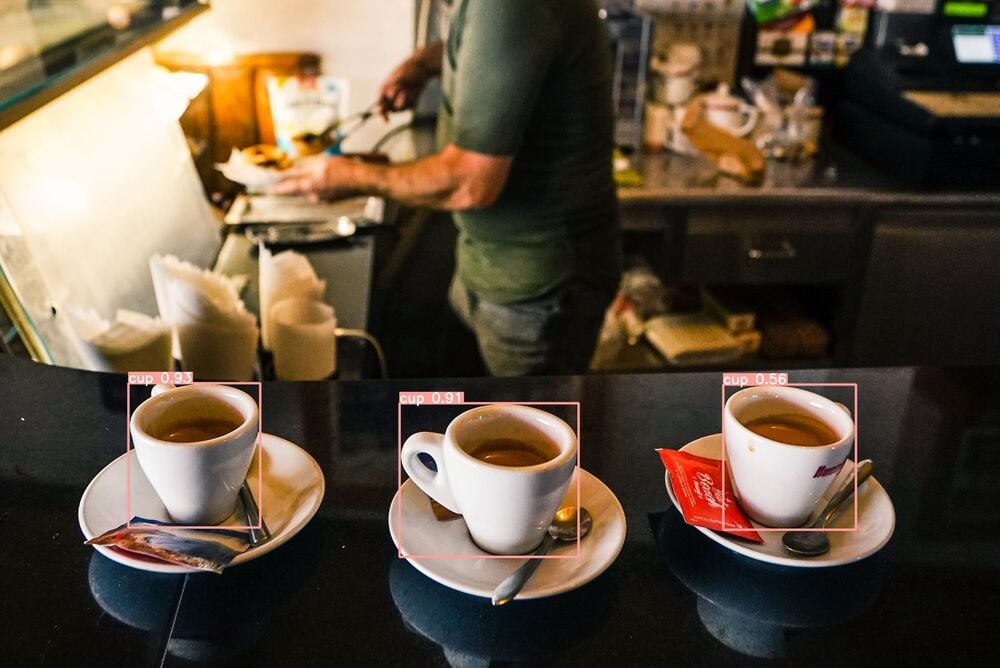
Explore the documentation and analyze anything – you can analyze videos or live streams, detect human movements or even draw an individuals skeleton for evaluating athletes movements.
If you need an AI-based application, website, Telegram bot, Google extension, automation tool, or web scraper, feel free to contact me at daniil@koveh.com. My team and I are happy to help you.